
Adding Reporting Services User and Role
The entry point for the Microsoft Reporting Services is the ReportServer.asmx file. The same Web Service is used to request Reports and administer the Report Server.
The Web Service is configured by default to use Windows Authentication. You can't simply open the security for anonymous Web users because that would open the Report Manager as well.
This security model requires the User be authenticated when they request Reports. A dialog opens requesting the user's login credentials the first time they request a Report each time the browser is opened again. When requesting the Report from within Aras Innovator this would not be desirable. Users would not only have to constantly provide login credentials to access reports, but each Innovator user would also have to have either a domain or local user access on the server.
To handle this problem, Aras provides the Innovator Reporting Services Gateway that processes requests to Reporting Services. This gateway uses one shared User Account for all Report requests. The Gateway submits the actual Report request using this shared User Account and propagates the results back to the client. The Report renders without the authentication dialog appearing.
If the user attempts to view the Report directly outside Aras Innovator, they still see the authentication dialog as normal. So, users can only view the Reports through Aras Innovator.
The local User Account on the server by default is named ‘Reporting’ with a default password is ‘reporting’ and must be mapped as a Role in the Report Server.
Add User Account for Reporting
The administrator for the server where Microsoft Reporting Services is installed must add a new Windows User Account named ‘Reporting’. Once the User Account is created Aras Innovator needs to be configured to use account credentials.
Configure User Account for On-Premises Innovator instance
Reporting Service configuration is stored in InnovatorServerConfig.xml configuration file. <ReportingServices> section needs to be updated with the username and password:
<ReportingServices>
<ReportServer>http://localhost/ReportServer/</ReportServer>
<User>Reporting</User>
<Password>reporting</Password>
<Domain>Domain for the above User</Domain>
</ReportingServices>
Optional node, <Domain>, should contain the domain name you want to use to connect to Reporting services.
Add the Reporting Role
The Reporting User Account must next be mapped as a Role in Reporting Services enabling this account Browser privileges.
-
Create the Reporting user on the Server.
-
Click the Site Settings link in the upper right-hand corner of the Report Manager page.
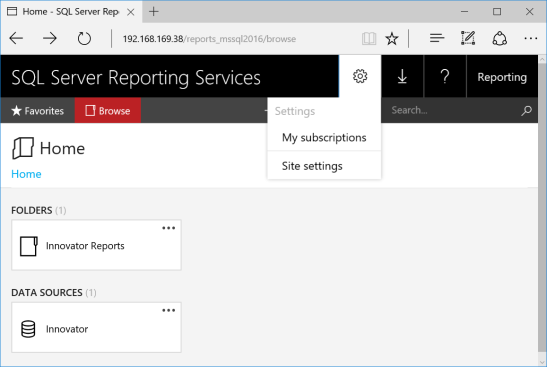
Figure 24.
-
Click the Security tab.
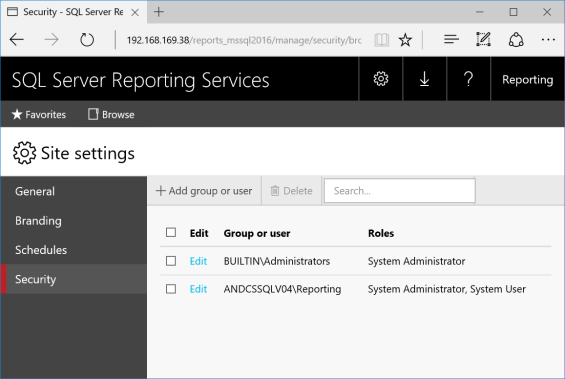
Figure 25.
-
Click Add group or user to map the Reporting User Account as a Reporting Services Role.
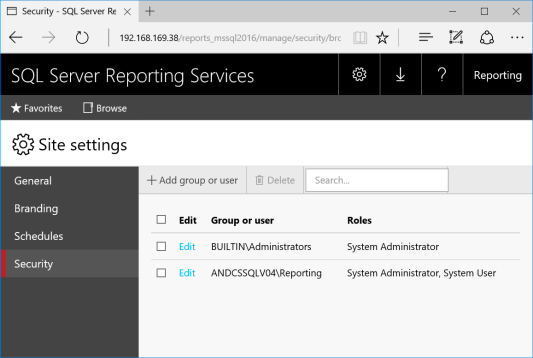
Figure 26.
-
Enter the Reporting User Account name, select the System checkbox, and click OK to create the new Role.
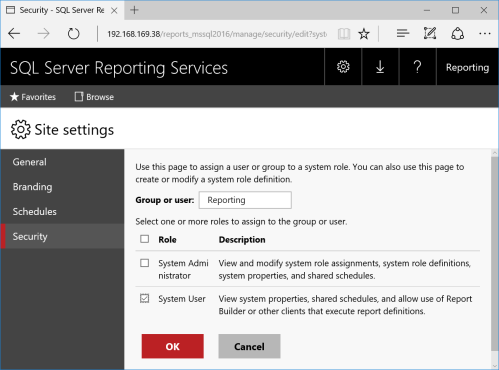
Figure 27.
-
Click the Browse link in the upper left corner of the page.
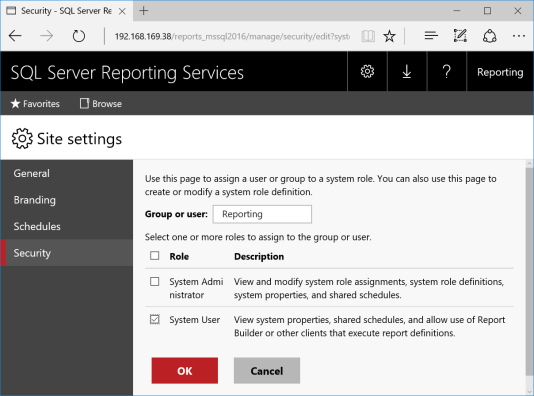
Figure 28.
-
Click the Manage Folder link.
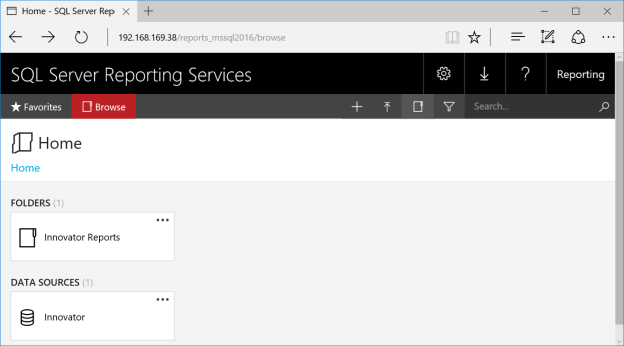
Figure 29.
-
In the settings tab, click Add group or user.
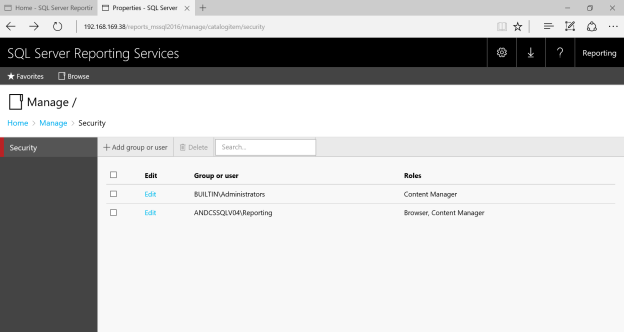
Figure 30.
-
Enter Reporting in the Group or user field, select the Browser checkbox, and click OK to create a new Role Assignment for the Innovator Reports folder.
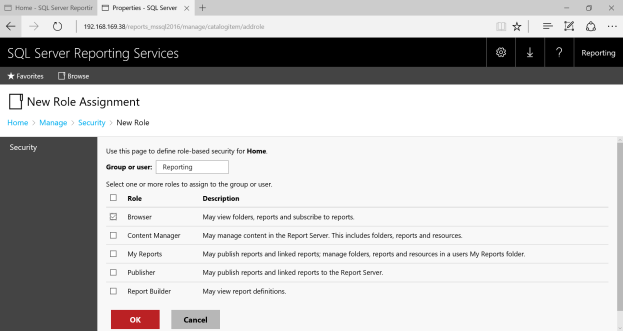
Figure 31.